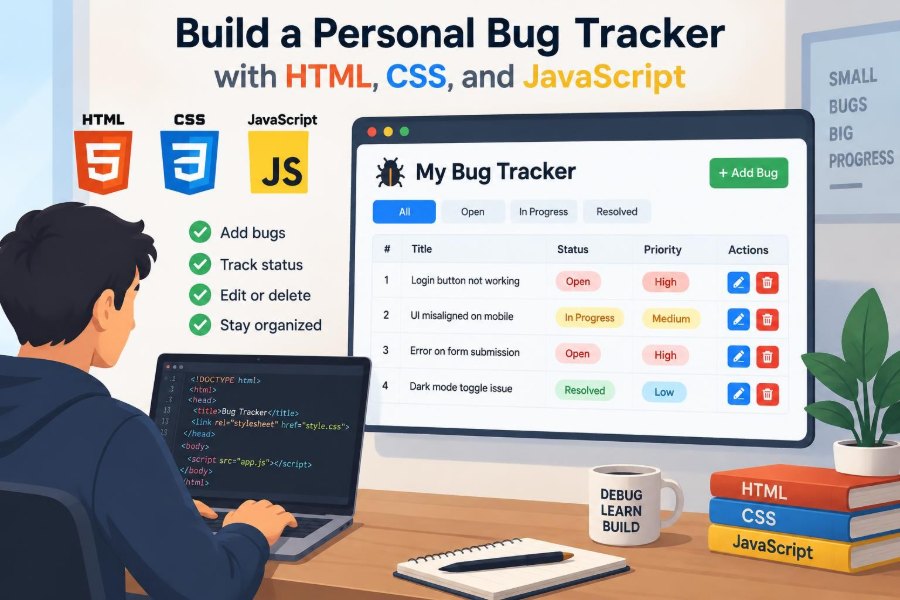

A bug appears while you are testing a project. You tell yourself you will fix it after lunch, then another issue interrupts you. By the time you return, the exact steps that caused the problem—and the workaround you found—have disappeared from memory.
This is the small, everyday problem that bug trackers solve. Professional teams use platforms with workflows, permissions, integrations, and reporting. But for a personal project, a lightweight tool you understand completely can be more useful than a large system you never configure.
Building a personal bug tracker is also an unusually practical front-end exercise. It asks you to collect user input, model data, render a changing interface, store information locally, and handle edge cases that make an application feel dependable.
In this tutorial, you will build a browser-based tracker with HTML, CSS, and JavaScript. The result will not replace a team issue-management platform, but it will teach the same core idea: turn vague problems into structured, actionable records.
🧭 Define the tracker’s job before writing code
A bug tracker is a system for recording defects: behavior that differs from what a product is expected to do. Its primary job is not merely making a list. It preserves enough context that you can reproduce, prioritize, and eventually close each issue.
For a personal tracker, keep the initial scope deliberately narrow. A strong first version can create bugs, display them, filter them by status, edit or delete them, and save them after the browser closes.
Resist adding accounts, cloud synchronization, file attachments, and complex dashboards immediately. Those are valid features, but each introduces design and reliability questions that can hide the fundamentals.
🎯 Choose fields that lead to action
Every field should help answer a question you will actually ask later. A title lets you scan the list. A description explains the failure. Status tells you whether work remains. Priority helps you choose what to address next.
A useful starting data model includes:
- id: a unique identifier for updates and deletion
- title: a short summary, such as “Save button remains disabled”
- description: expected behavior, actual behavior, and reproduction notes
- priority: low, medium, or high
- status: open, in progress, or resolved
- createdAt: a timestamp for sorting and context
A concise title paired with a detailed description is more effective than trying to make one field do both jobs.
🗂️ Think of each bug as a JavaScript object
In JavaScript, represent one issue as an object. A collection of issues is then an array of objects. This is a simple in-memory database: your interface becomes a view of that array.
const bug = {
  id: "bug-1710000000000",
  title: "Search clears after changing filter",
  description: "Type a query, choose High priority, then return to All.",
  priority: "high",
  status: "open",
  createdAt: "2025-03-08T10:30:00.000Z"
};
Keeping data separate from the page is a key design habit. The HTML is not the source of truth; the bugs array is. That distinction makes sorting, filtering, editing, and saving much easier.
🏗️ Set up a small, understandable project structure
Three files are enough for the first version: index.html for structure, styles.css for presentation, and app.js for behavior. Separating them makes it easier to locate a problem and change one concern without accidentally changing another.
bug-tracker/
  index.html
  styles.css
  app.js
You can open the HTML file directly in a browser while learning. A local development server becomes helpful later, especially when you add modules, fetch data, or test behavior that browsers restrict for local files.
🧱 Build semantic HTML before styling
Start with elements that describe their purpose: a form for creating issues, labels connected to inputs, a select for controlled choices, and a list area for results. Semantic HTML gives your application a useful structure before CSS makes it attractive.
<main>
  <section>
    <h2>Report a bug</h2>
    <form id="bug-form">
      <label for="title">Title</label>
      <input id="title" name="title" required>

      <label for="description">Description</label>
      <textarea id="description" name="description" required></textarea>

      <button type="submit">Add bug</button>
    </form>
  </section>
  <section><div id="bug-list"></div></section>
</main>
Notice that labels are not placeholder text. Placeholders vanish when someone types, while labels remain available as a clear description of each field.
🎨 Create a visual system, not a pile of styles
A tracker benefits from visual hierarchy because users need to scan it quickly. Use a calm page background, a restrained card surface, readable body text, and one strong accent color for primary actions.
Define repeated values with CSS custom properties. This avoids slightly different grays, spacing values, and border radii accumulating across the page.
:root {
  --surface: #ffffff;
  --page: #f4f7fb;
  --text: #172033;
  --accent: #2563eb;
  --border: #d7deea;
  --radius: 12px;
}

body {
  margin: 0;
  font-family: system-ui, sans-serif;
  background: var(--page);
  color: var(--text);
}
Consistency is not decoration. It reduces the effort required to understand which elements can be clicked, edited, or compared.
📱 Design for narrow screens early
A personal tracker may be used on a laptop during development and on a phone when a thought occurs away from the desk. A layout that depends on wide horizontal rows can become frustrating quickly.
Use a single-column form, allow action controls to wrap, and avoid fixed widths for cards. On wider screens, CSS Grid can place summary information and controls side by side; on smaller screens, it can collapse naturally.
.bug-card {
  display: grid;
  gap: 0.75rem;
  padding: 1rem;
  background: var(--surface);
  border: 1px solid var(--border);
  border-radius: var(--radius);
}

@media (min-width: 700px) {
  .bug-card { grid-template-columns: 1fr auto; }
}
📝 Capture useful reproduction details
“Login is broken” is a real report, but it is difficult to act on. Better reports explain what the user did, what they expected, and what occurred instead.
Consider a hint beneath the description field: “Include steps to reproduce, expected result, and actual result.” You can keep this guidance outside the saved data while still improving the quality of every entry.
For example, a stronger hypothetical report is: “Open Settings, change the theme, refresh the page. Expected: the selected theme persists. Actual: the page returns to the default theme.” That statement gives future-you a test case.
✅ Validate input at two levels
HTML validation provides a useful first layer. The required attribute prevents empty required fields from being submitted through normal browser interaction, and a maxlength can stop extremely long titles.
JavaScript should still validate submitted values. Script-based validation lets you trim whitespace, show an application-specific message, and protect the data model if the form is changed later.
function validateBug(title, description) {
  if (!title.trim()) return "Add a short bug title.";
  if (!description.trim()) return "Describe what happened.";
  return "";
}
Client-side validation improves usability; it is not a security boundary. If this application later sends data to a server, that server must independently validate all incoming data.
🔑 Generate identifiers that survive reordering
Do not use an array index as a permanent bug ID. If you delete the second item, every later index shifts, which can make edit or delete actions target the wrong record.
Modern browsers provide crypto.randomUUID(), which is a convenient option for client-side unique IDs. A timestamp plus random text is a fallback for older environments.
function createId() {
  return crypto.randomUUID
    ? crypto.randomUUID()
    : `bug-${Date.now()}-${Math.random().toString(16).slice(2)}`;
}
The exact ID format is less important than its role: it must identify one record consistently, even as the list changes order.
➕ Handle form submission intentionally
When a form is submitted, the browser normally reloads the page. In a single-page application, prevent that default behavior, read the form values, create an object, and update your state.
const form = document.querySelector("#bug-form");

form.addEventListener("submit", (event) => {
  event.preventDefault();
  const data = new FormData(form);
  const title = data.get("title").trim();
  const description = data.get("description").trim();
  const error = validateBug(title, description);

  if (error) return;
  bugs.unshift({ id: createId(), title, description,
    priority: data.get("priority"), status: "open",
    createdAt: new Date().toISOString() });
  saveBugs();
  renderBugs();
  form.reset();
});
unshift() puts new reports first, which is often the most practical order for a personal queue.
🔄 Make rendering a repeatable function
Rendering means translating application state into visible DOM elements. Put that work in one function so every state change follows the same path: update the array, save it, then render it.
This pattern avoids a common source of bugs: manually changing the page in several event handlers until the visible UI no longer matches the underlying data.
Your renderBugs() function should clear the old list, determine which bugs should be shown, create an element for each one, and add an empty-state message when nothing matches.
🛡️ Render user text safely
Bug titles and descriptions are user-provided text, even if the only current user is you. Treating them as HTML with innerHTML can create a cross-site scripting risk if text contains markup or if the app is later shared.
Prefer textContent when inserting text. It displays angle brackets as text rather than interpreting them as browser instructions.
const title = document.createElement("h3");
title.textContent = bug.title;

const description = document.createElement("p");
description.textContent = bug.description;
Using DOM creation methods may feel more verbose than a template string, but it makes the safe behavior explicit.
🏷️ Use priority as a decision aid
Priority is not a measure of how annoying a defect feels. It is a practical judgment about the order in which you should address it. A broken payment flow in a demo may be high priority; a slightly uneven margin may be low priority.
| Priority | Practical meaning | Example |
|---|---|---|
| High | Blocks a central task or risks incorrect results | Form submission silently loses entered data |
| Medium | Damages a feature but has a reasonable workaround | Filter only updates after a refresh |
| Low | Minor friction or visual inconsistency | One label has inconsistent spacing |
These labels are intentionally relative. Their value comes from applying them consistently within one project.
🚦 Treat status as a lightweight workflow
Status answers a different question from priority: where is this bug in the work process? An “open” bug is known but not currently being fixed. “In progress” signals active work. “Resolved” means you believe the expected behavior now occurs.
A resolved status is not the same as proof that a defect can never return. It records a decision at a point in time. If the issue reappears, reopen it and add notes about the new conditions.
Keeping status options limited makes filtering useful. A dozen ambiguous states often create more administration than clarity in a personal tool.
🔎 Filter without destroying your source data
Filtering should create a temporary view, not remove items from the main bugs array. Use filter() to make a derived array, then render that result.
function visibleBugs() {
  const selected = document.querySelector("#status-filter").value;
  return selected === "all"
    ? bugs
    : bugs.filter((bug) => bug.status === selected);
}
This matters because switching back to “all” should reveal the original records. Mutating the source array while filtering is an easy way to accidentally lose data.
🔤 Add search only when its behavior is clear
Search becomes useful once a list has enough items that scanning titles is slow. Search titles and descriptions with a normalized query: convert both the query and field values to lowercase, then use includes().
Decide whether search and filters should combine. Usually they should: if a user searches “export” while viewing high-priority issues, they expect only high-priority export-related records.
Use a short debounce only if live searching eventually becomes expensive. For a local list of personal bugs, immediate updates are simpler and entirely reasonable.
↕️ Sort by a stated rule
Sorting can turn a busy list into a useful work queue, but the rule must be understandable. Newest first is a sensible default because recent reports have fresh context. Priority-first ordering may be better during a focused fixing session.
Do not quietly reorder items in surprising ways. Offer a labeled sort control, such as “Newest,” “Oldest,” or “Priority,” and keep the tie-breaker predictable.
When sorting dates, store timestamps in ISO 8601 format with new Date().toISOString(). ISO strings are unambiguous for storage and can be converted into a friendly display format when rendered.
✏️ Edit records instead of creating duplicates
Bug reports become clearer as you investigate them. You may discover a narrower reproduction path, downgrade a priority, or correct an inaccurate title. Editing preserves the history of one issue better than creating several near-duplicates.
For a first implementation, reuse the main form. When the user clicks Edit, load that bug’s values into the fields and store the current ID in a variable. On submit, replace the matching object rather than adding a new one.
bugs = bugs.map((bug) =>
  bug.id === editingId
    ? { ...bug, title, description, priority }
    : bug
);
The spread syntax copies the existing object while replacing only the fields you changed.
🗑️ Delete carefully and make recovery possible
Deletion is useful for accidental reports, duplicates, or test data. It is also irreversible in a basic local application, so the interaction deserves care.
A confirmation dialog is acceptable for a small project, but a brief “Undo” option is often friendlier because it lets users reverse an accidental click without another interruption. Either approach should remove the record by its stable ID, not by its position in the displayed list.
If you prefer a complete history, add an “archived” status instead of permanent deletion. That choice depends on whether keeping old records has value for your project.
💾 Persist bugs with localStorage
An array in JavaScript disappears when the page reloads. localStorage gives the browser a small key-value store that remains available for the same site and browser profile. Because it stores strings, convert the array with JSON.
function saveBugs() {
  localStorage.setItem("personal-bugs", JSON.stringify(bugs));
}

function loadBugs() {
  const saved = localStorage.getItem("personal-bugs");
  return saved ? JSON.parse(saved) : [];
}

let bugs = loadBugs();
Call saveBugs() after every meaningful change. At startup, load the saved data before the first call to renderBugs().
⚠️ Handle storage failure and malformed data
Local storage is convenient, not infallible. Users can clear site data, browsers can restrict storage in some contexts, and manually edited values may no longer be valid JSON.
Wrap loading in try...catch and fall back to an empty array if parsing fails. When saving, report an understandable message if storage is unavailable rather than pretending the change was saved.
function loadBugs() {
  try {
    return JSON.parse(localStorage.getItem("personal-bugs")) || [];
  } catch {
    return [];
  }
}
Also remember the boundary: localStorage is local to one browser profile. It does not synchronize devices, provide collaboration, or serve as a backup strategy.
♿ Build keyboard and screen-reader support in
Accessibility is easier when it is part of the first design, not a final checklist. Native buttons, inputs, labels, and selects already have keyboard behavior and useful semantics. Replacing them with clickable div elements creates unnecessary work.
Make focus visible with CSS, ensure controls have readable names, and use color alongside text for priority and status. A red badge alone should not be the only indication that something is high priority.
When an action changes the page, keep focus predictable. For example, after opening an edit mode, move focus to the title field; after saving, return focus to a useful location in the updated card.
🧪 Test the paths people actually take
Testing a small tracker does not require a large framework. Create a practical checklist and use it whenever you change behavior. Manual testing is especially useful for forms, responsive layout, and keyboard interactions.
- Add a valid bug and confirm it appears immediately.
- Try a blank title and whitespace-only description.
- Reload the page and confirm saved records return.
- Filter, search, sort, edit, resolve, and delete items.
- Test on a narrow viewport and with keyboard-only navigation.
- Enter punctuation and angle brackets to verify text is displayed safely.
Each item checks a user outcome, not merely whether a specific function ran without an error.
🐛 Avoid common implementation traps
One frequent mistake is attaching individual event listeners every time you render without clearing old elements correctly. Event delegation can simplify this: listen once on the list container, then inspect which button was clicked.
Another is mixing state updates and DOM updates throughout the code. Prefer a predictable sequence: update data, persist data, render data. It makes defects easier to trace because there is one clear place to inspect each responsibility.
Finally, avoid treating localStorage as secure storage. Do not put passwords, access tokens, private client data, or anything sensitive in it.
🧩 Keep code organized as features grow
A single app.js file is appropriate at first. As the tracker grows, group functions by responsibility: data storage, rendering, form operations, filtering, and event handling.
You do not need a framework to practice good architecture. Small functions with names such as createBugCard, saveBugs, getVisibleBugs, and updateBugStatus are easier to test and change than one large function handling everything.
Frameworks can later provide useful conventions, but they do not remove the need to understand state, events, and data flow. This project gives those concepts a concrete foundation.
📤 Add export and import for ownership
Because browser storage is not a backup, an export feature is a worthwhile enhancement. Convert the bug array to formatted JSON, create a downloadable file, and let the user keep a copy outside the browser.
Importing adds a reverse path, but validate the incoming structure before replacing existing data. Check that it is an array and that every item has the fields your renderer expects. Consider merging imported entries by ID instead of overwriting everything.
This feature also makes your data portable. A person can move their tracker to another browser without manually re-entering every report.
📈 Know when a personal tool has reached its limit
A local tracker is ideal for private experiments, portfolios, learning projects, and solo work. It becomes a poor fit when several people need concurrent updates, comments, permissions, notifications, audit history, or reliable shared access.
At that point, a hosted issue tracker or a backend you maintain may be the right next step. That is not a failure of the small tool; it is a change in requirements.
The same model still applies in larger systems: structured issue data, a defined workflow, a source of truth, safe rendering, and dependable persistence.
🌱 Extend the project with purpose
Once the core tracker works, choose enhancements based on a real use case. Useful possibilities include tags for areas such as “UI” or “API,” a resolved-date field, dark mode, markdown-free plain-text notes, or a small dashboard that counts open issues by priority.
Each addition should answer a question: what new decision or workflow does this support? Adding a feature merely because it is technically possible can make a personal tool harder to use and maintain.
A good next challenge is to write down the behavior before coding it. That tiny specification will expose ambiguous decisions, such as whether a resolved bug can be edited or whether a status change should update a timestamp.
🏁 Build systems that help future-you
The central lesson is larger than this one application. Reliable software comes from making state explicit, choosing data that supports decisions, and ensuring the interface accurately reflects that state.
Your tracker does not need to be elaborate to be valuable. A well-labeled form, a consistent render cycle, safe text handling, and local persistence already turn a forgettable annoyance into a manageable piece of work.
As you add features, protect that clarity. Every button should have a defined effect, every stored value should have a purpose, and every visible record should be traceable to the data behind it.
A personal bug tracker succeeds when it makes the next useful action obvious: understand the issue, choose its priority, change its status, and preserve what you learned. Build the smallest version that does those things well, then let real usage guide the rest. 🧩🐛💻